Temu APK Old Version — Previous Android Versions & Rollback Guide
A Temu APK old version can be useful when a recent update causes a device-specific problem or when an earlier release supports an older Android version. It should not be treated as a better Temu app by default, and an archived APK needs more verification than simply checking the filename.
The genuine Android app uses package name com.einnovation.temu, and Google’s current Play listing shows Temu as actively maintained, with the listing updated on September 10, 2026. Historical archive data also shows why version selection matters: Temu 4.56.0 supported Android 5.0+, while releases such as 4.61.0 and 4.82.0 required Android 6.0+.
Downgrading is also different from an ordinary update. Android normally requires an update to have the same application ID and signing identity while using a version code that is not lower than the installed version. A normal downgrade may therefore require uninstalling the newer app first, which can remove local app data.
This guide focuses on choosing, verifying, and rolling back to a previous Temu Android release without confusing an authentic old version with a modified or mislabeled APK.
Temu APK Old Version — What to Know Before Downloading
A Temu APK old version is an earlier Android release of the genuine Temu shopping app. It should not be confused with a MOD APK, repackaged file, or unrelated app using the Temu name.
The legitimate Android application uses package name com.einnovation.temu. Google Play currently lists it as Temu: Shop Like a Billionaire, published by Temu, and shows the listing as updated on September 10, 2026.
Most people searching for a Temu app download APK old version have a specific reason, such as:
- running Temu on an older Android device;
- rolling back after a problematic update;
- comparing an earlier interface or app behavior;
- troubleshooting a device-specific issue;
- reinstalling a release they previously used.
Older does not automatically mean better. A previous release can lack later bug fixes, compatibility improvements, or security updates. Because Temu also relies heavily on online services, an old APK may install correctly while some current account, checkout, promotion, or marketplace functions behave differently.
Before installing an archived version, verify more than the filename.
| Question | Why it matters |
|---|---|
Is the package com.einnovation.temu? | Confirms the expected Temu Android application ID |
| Is the version actually older? | Helps detect mislabeled or misleading downloads |
| Does it support your Android version? | Prevents choosing a release your device cannot run |
| Does the signing identity match? | Helps distinguish a genuine historical build from a repackaged file |
| Is it an APK or split bundle? | Determines what installation method is required |
| Is the architecture compatible? | Some variants target specific CPU architectures |
| Do you actually need to downgrade? | The current release is usually preferable when it works correctly |
A version number by itself is therefore not enough. Check the package name, version name, version code, Android requirement, CPU architecture, file format, and signing certificate before treating a historical APK as genuine.
Why Do People Download an Older Temu APK?
An older Temu release can serve a legitimate technical purpose, but it is usually a workaround rather than the preferred long-term version.
The most common reasons are device compatibility, problems introduced by a recent update, preference for an earlier interface, testing, or reinstalling a previously used build.
Older Android Compatibility
One practical reason to search for a Temu old version APK is support for an older Android device.
Historical archive data shows that Temu’s minimum Android requirement has changed between releases. For example:
- Temu 4.55.1 supported Android 5.0+.
- Temu 4.56.0 also supported Android 5.0+.
- Temu 4.61.0 required Android 6.0+.
- Temu 4.66.0 required Android 6.0+.
- Temu 4.82.0 required Android 6.0+.
This means an older release can sometimes help when a newer Temu build no longer supports the Android version installed on a phone.
However, do not assume that every older Temu APK supports every old Android device. Compatibility still depends on the minimum Android version, CPU architecture, and APK variant for that particular release.
The better approach is to find the newest verified version that still supports your device, rather than downloading the oldest Temu APK you can find.
Rolling Back After an Update Problem
Another common reason for downgrading is a problem that appeared immediately after an app update.
Examples include:
- repeated crashes;
- slower performance;
- a device-specific compatibility bug;
- unusual battery or memory behavior;
- an interface change that creates problems on a particular device.
A rollback can be useful as a diagnostic step. If one verified older version works while the newer release consistently fails on the same device, that can help narrow down the cause.
Still, changing APK versions will not fix every Temu problem. Issues caused by:
- Temu’s servers;
- account restrictions;
- login state;
- payment or checkout systems;
- internet connectivity;
- Android system problems
can continue regardless of which client version is installed.
Why Older Does Not Automatically Mean Faster or Safer
An old APK can sometimes run better on one specific device, but that does not make older versions generally faster or safer.
Earlier releases may contain:
- bugs fixed in later builds;
- outdated libraries;
- compatibility problems with newer Android versions;
- missing performance improvements;
- security weaknesses addressed by later updates.
There is also an important server-side limitation. Temu is an online shopping platform, so many functions depend on current remote systems rather than only on code stored inside the APK.
Installing an older interface does not restore Temu’s marketplace to an earlier date. Current product listings, prices, account rules, promotions, payment systems, and other server-controlled functions can continue changing independently of the APK version installed on your phone.
Temu Old Version APK History — How Versions Differ
A useful old-version archive should show meaningful metadata rather than simply offering a long list of version numbers.
The examples below illustrate how Temu releases from 2026 differed in Android requirements and file variants.
| Version | Version code | Archived date | Minimum Android | Architecture | APK/bundle variants | Notes |
|---|---|---|---|---|---|---|
| 4.82.0 | 48200 | Sept. 9–13, 2026 | Android 6.0+ | arm64-v8a; APK also supports armeabi-v7a | APK + split bundle | APK and bundle use different architecture/DPI configurations |
| 4.66.0 | 46600 | July 12, 2026 | Android 6.0+ | arm64-v8a + armeabi-v7a | APK + bundle | Two archived variants |
| 4.61.0 | 46100 | June 24, 2026 | Android 6.0+ | arm64-v8a + armeabi-v7a | APK + bundle | Android requirement had moved to API 23 |
| 4.56.0 | 45600 | June 2, 2026 | Android 5.0+ | arm64-v8a + armeabi-v7a | APK + bundle | Supports Android 5.0 / API 21 |
| 4.39.0 | 43900 | March 25, 2026 | Android 5.0+ | arm64-v8a + armeabi-v7a | APK + bundle | Earlier Android 5.0-compatible release |
Archive details:
The table also shows why downloading by version number alone is not enough. Two releases with similar names can have different Android requirements, architectures, file structures, or version codes.
Archive availability can also change. Metadata should therefore be checked again at the time you actually obtain a file rather than assuming an old listing remains unchanged indefinitely.
Version Name vs Version Code
Android apps commonly have both a version name and a version code.
For example:
- 4.66.0 is the human-readable Temu version name.
- 46600 is the Android version code shown for the archived 4.66.0 release.
The version name is what users normally recognize. The version code is more important to Android when determining the relationship between an installed build and another APK.
Android’s official documentation states that an update must use the same application ID and compatible signing certificate, and its version code must be equal to or higher than the currently installed app.
That is why installing a lower Temu version code over a newer installed build is not handled like a normal update. Android recognizes it as a downgrade situation.
Version codes can also reveal differences that are not obvious from the public version name. Two APK variants may display the same Temu version name while using different internal version codes.
Why One Temu Version Can Have Multiple APK Variants
A single Temu release can appear in more than one downloadable form because Android packages can be built for different devices and distribution methods.
Differences can include:
- CPU architecture: such as
arm64-v8aorarmeabi-v7a; - screen density: a package may target several DPI ranges or be marked
nodpi; - standalone APK: a single directly installable package;
- split bundle: a base APK combined with architecture, screen-density, or feature-specific splits;
- version code: some variants of the same public release can use different internal codes.
Temu 4.64.0 is a clear example. Its archive currently lists three variants:
| Temu 4.64.0 variant | Version code | Architecture | DPI | Format |
|---|---|---|---|---|
| Bundle | 46400 | arm64-v8a + armeabi-v7a | 120–640 dpi | Split bundle |
| APK | 46400 | arm64-v8a + armeabi-v7a | nodpi | Standalone APK |
| APK | 46401 | arm64-v8a | nodpi | Standalone APK |
All three require Android 6.0+, but they are not identical files.
The bundle version also contains separate architecture, DPI, and dynamic-feature components rather than functioning as one ordinary standalone APK.
This is why a file described simply as “Temu 4.64.0 APK” is not specific enough to prove compatibility. Check the architecture, DPI, version code, and package format before installing an old release.
How to Choose the Right Temu Old Version for Your Phone
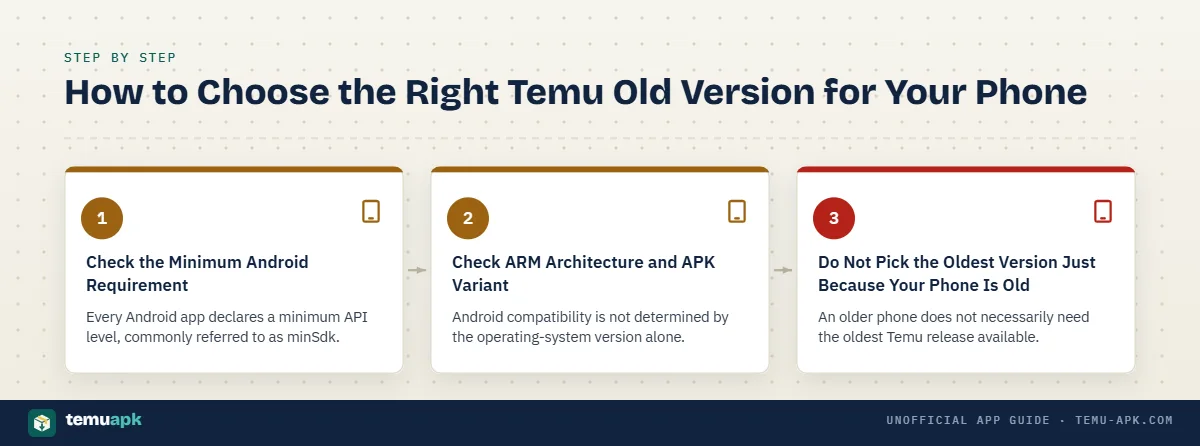
Choosing a Temu APK old version should start with your device and the specific reason you want to downgrade. A lower version number is not automatically more compatible, faster, or more reliable.
Before downloading an archived release, check:
- Android version: The APK’s minimum Android requirement must be compatible with your phone.
- CPU architecture: Confirm whether the file supports your device’s ARM architecture.
- File format: Determine whether you have a normal standalone APK or a split bundle that needs a different installation method.
- Version code: Make sure you understand how far back you are actually downgrading.
- Signing identity: A genuine historical release should maintain the expected signing continuity.
- Package name: The legitimate Android package is
com.einnovation.temu. - Reason for rollback: Pick a version that addresses a real compatibility or troubleshooting need rather than choosing an arbitrary old build.
The goal should usually be the newest verified Temu release that works correctly on your device, not the oldest APK you can find.
Check the Minimum Android Requirement
Every Android app declares a minimum API level, commonly referred to as minSdk. A device running an Android version below that requirement is not considered compatible with the release.
Temu’s historical versions show why this matters.
For example:
- Temu 4.56.0 lists Android 5.0 / API 21 as its minimum requirement.
- Temu 4.61.0 requires Android 6.0 / API 23.
Archive data also shows Temu 4.55.1 among the Android 5.0-compatible builds, while later 2026 branches moved to Android 6.0+.
This means a phone running Android 5 may need a release from the older compatibility branch, but a phone running Android 6 or newer has more options.
Do not assume that moving farther back will improve compatibility. Once you identify the latest verified release that supports your Android version, going significantly older can add disadvantages without solving anything.
Check ARM Architecture and APK Variant
Android compatibility is not determined by the operating-system version alone.
Historical Temu packages can support architectures such as:
arm64-v8aarmeabi-v7a- both architectures in one package
For example, archived Temu 4.56.0 and 4.61.0 variants support both arm64-v8a and armeabi-v7a.
You should also identify the package format.
A standalone APK is normally a single installable file. A split bundle can contain a base APK plus separate components for architecture, screen density, language, or app features. Installing only one piece of an incomplete split set can result in installation failure.
Archive listings can therefore show several files for what appears to be the same Temu version. Those files may differ by:
- CPU architecture;
- screen density;
- standalone versus bundle format;
- internal version code;
- included configuration splits.
File size alone does not tell you which one is genuine, newer, safer, or better for your phone. A bundle can be larger because it contains multiple configuration components, while a device-specific APK may be smaller because it contains only what that target requires.
Do Not Pick the Oldest Version Just Because Your Phone Is Old
An older phone does not necessarily need the oldest Temu release available.
A better process is:
- Check the Android version installed on the phone.
- Find the newest verified Temu release that supports that Android generation.
- Confirm the correct architecture and package format.
- Verify the signing identity.
- Go farther back only if the newer compatible release still has the specific problem you are trying to solve.
For example, if a verified Android 5-compatible Temu release works on your device, there is little benefit in automatically dropping several more versions.
Going unnecessarily far back increases the chance of encountering:
- bugs fixed later;
- outdated libraries;
- missing compatibility improvements;
- problems communicating with current Temu services;
- features that no longer behave as they did when the APK was released.
Use age as a compatibility factor, not as a quality indicator.
How to Verify a Temu APK Old Version Before Installing
Historical APKs need more verification than simply checking that the filename contains “Temu.”
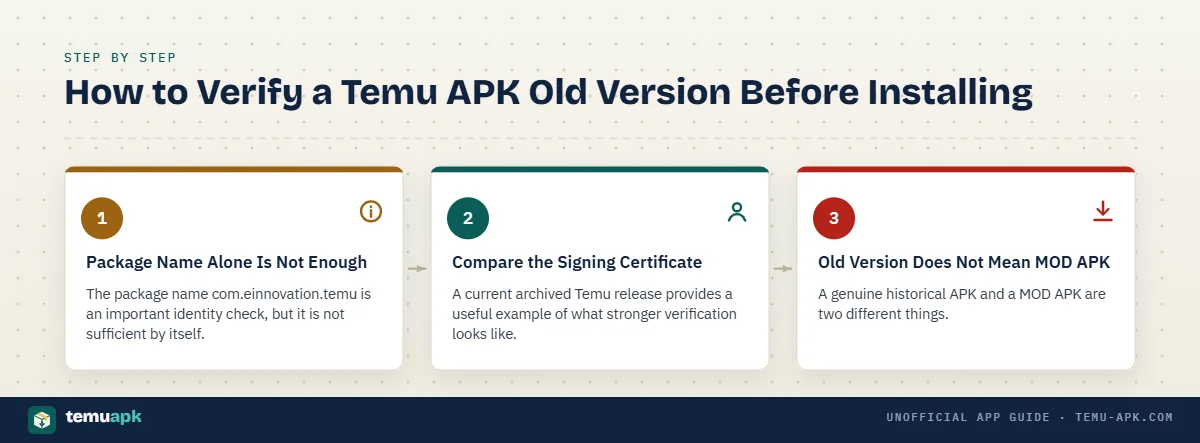
Before installing, confirm:
- App name: Temu: Shop Like a Billionaire
- Package name:
com.einnovation.temu - Version name: such as 4.56.0 or 4.61.0
- Version code: such as 45600 or 46100
- Minimum Android requirement
- CPU architecture
- File format: standalone APK or split bundle
- Signing certificate and signature continuity
- File hash, when a reliable archive publishes one
- Provenance: where the historical file came from and how its metadata was obtained
No single check proves everything. The stronger approach is to compare several independent pieces of metadata.
Package Name Alone Is Not Enough
The package name com.einnovation.temu is an important identity check, but it is not sufficient by itself.
A repackaged or malicious APK can be given a familiar filename, and package identity should be considered alongside the app’s cryptographic signing certificate.
Android uses both the application ID and signing identity when determining whether a new package can update an existing installation. According to Android’s official documentation, an accepted update normally needs:
- the same application ID;
- the same signing certificate, or a valid proof-of-rotation;
- a version code equal to or higher than the installed version.
Android’s app-signing documentation also explains that the operating system compares certificates during an upgrade. A package signed with an unrelated certificate cannot simply replace an existing app as though it were the same trusted update.
That makes signing continuity much more useful than relying on a filename such as:
temu_old_version.apk
A filename can be renamed in seconds. The signing identity is cryptographic metadata tied to the APK.
Compare the Signing Certificate
A current archived Temu release provides a useful example of what stronger verification looks like.
The archived Temu 4.84.0 standalone APK identifies:
- package:
com.einnovation.temu; - version: 4.84.0;
- Android requirement: Android 6.0+;
- certificate information;
- SHA-1 and SHA-256 certificate fingerprints;
- cryptographic file hashes.
The archive reports the certificate fingerprints as:
- SHA-1:
2e0bf701b484205cd6bacae5bba5572e13214a60 - SHA-256:
8adefece3749dcf23c3ceb3a8bbbc9a1d88091b676300588911bb58b85970baf
Its certificate information identifies whaleco / einnovation, and the archive reports that the APK is signed by Temu and can upgrade the existing signed application.
The same certificate fingerprints are also displayed for the archived 4.84.0 bundle.
For an older release, the useful question is therefore not simply “Does this say Temu?” but:
Does the historical package show signing continuity with the known Temu release chain?
A published SHA-256 file hash adds another check. It can confirm that the file you obtained matches the exact archived file whose metadata you reviewed. A hash by itself does not establish who created the APK, however, so it should be used together with certificate and provenance checks.
Old Version Does Not Mean MOD APK
A genuine historical APK and a MOD APK are two different things.
Old official version
- Earlier release of the normal Temu Android app
- Expected package identity
- Expected developer-signing continuity
- Unmodified historical application code for that release
MOD APK
- Package altered by a third party
- May change code, resources, permissions, or behavior
- May no longer preserve the expected signing identity
- Can make unsupported claims such as “unlimited money” or “free shopping”
Terms such as old version, MOD APK, unlimited money, free shopping, and no verification should therefore not be treated as interchangeable download options.
If a page labels a file both “old Temu APK” and “MOD unlimited money,” that is no longer simply an archive of a previous genuine release.
Can You Downgrade Temu Without Uninstalling the Current Version?
For a normal consumer installation, you generally cannot install a lower Temu version code directly over a newer installed version as though it were an update.
Android’s official update rules require an accepted update to have:
- the same application ID;
- the same signing certificate or valid proof-of-rotation;
- a version code that is equal to or higher than the currently installed app.
If the older Temu APK has a lower version code, it fails that standard update condition even when the package and signing identity are otherwise correct.
Android’s documentation states that installing an app that does not meet the update conditions normally requires uninstalling the existing version first. It also warns that uninstalling removes that app’s data from the device.
Android developer and debugging tools include special downgrade/testing mechanisms, but those are not the normal installation route for ordinary Temu users and are not necessary for a typical rollback guide.
What Uninstalling Can Remove
Uninstalling Temu before installing an older version can remove data stored locally by the application.
That can include:
- app cache;
- local preferences;
- stored app settings;
- temporary files;
- locally stored session information;
- other app-specific data kept inside Temu’s private storage area.
Android explicitly states that uninstalling an app to replace it with a package that does not meet update conditions erases the app’s data from the device.
This is different from Temu information stored on remote servers.
For example, an account’s order history or other server-side information is not the same as local cache stored on the phone. Signing back into the same account may restore server-linked information that remains associated with that account, but you should not assume that every local preference, temporary state, or app-specific setting will automatically return.
If something stored locally matters, protect or record it before uninstalling.
Why “App Not Installed” Can Appear During a Downgrade
The generic “App not installed” message can have several causes during a Temu rollback.
Common possibilities include:
- Lower version code: A newer Temu release is still installed, so Android rejects the older APK as an ordinary update.
- Signature mismatch: The archived file is signed differently from the installed Temu app.
- Wrong APK variant: The package does not match the phone’s architecture or configuration.
- Incompatible Android version: The APK’s minimum Android requirement is higher than the operating system on the phone.
- Incomplete split package: Only part of a bundle was downloaded or installed.
- Corrupted file: The APK is incomplete or no longer matches the published file hash.
The version-code and signature checks are particularly important. Android requires matching application identity and signing credentials for update continuity, and it will not treat an unrelated signed package as a normal replacement for the installed app.
If installation fails, verify those conditions before downloading an even older Temu version. Going farther back will not solve a signature mismatch, broken bundle, or incompatible package format.
How to Install a Temu Old Version APK More Safely
Installing a Temu APK old version is different from installing the current app for the first time. A rollback can require removing the newer release, which may delete locally stored app data, so verification should happen before you uninstall anything.
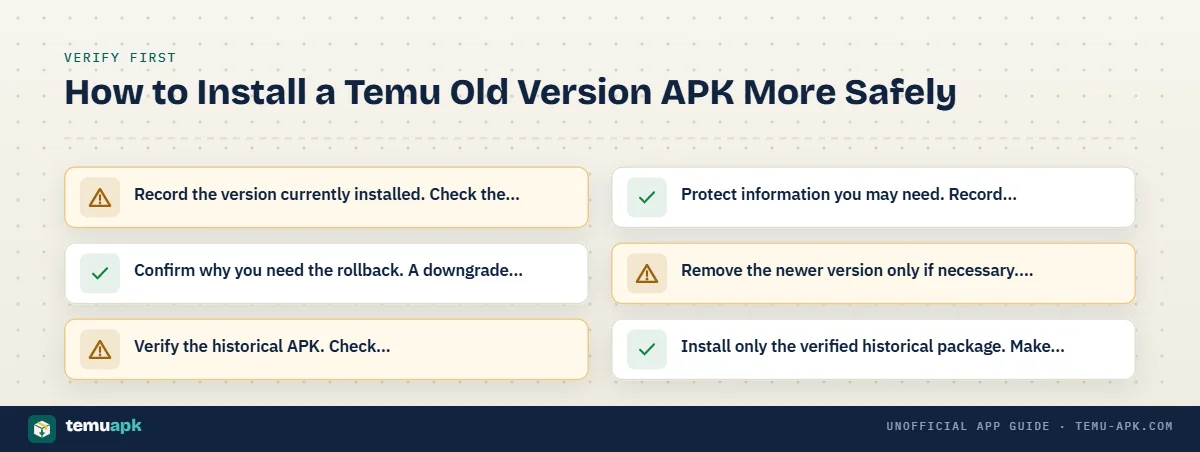
Use this rollback-specific process:
- Record the version currently installed. Check the Temu app information on your device so you know which release you are leaving and can confirm that the replacement really is older.
- Confirm why you need the rollback. A downgrade makes more sense for a reproducible compatibility or update problem than simply because an older APK is available.
- Verify the historical APK. Check
com.einnovation.temu, the version name and code, minimum Android version, CPU architecture, package format, and signing identity. - Protect information you may need. Record relevant settings or other locally stored details before uninstalling the current version.
- Remove the newer version only if necessary. Android normally will not treat a lower version code as a standard update. Android’s documentation says an update must use the same application ID and compatible signing certificate and have a version code equal to or higher than the installed version.
- Install only the verified historical package. Make sure you have the correct standalone APK or complete split package for your device.
- Review permissions after installation. Do not assume an old release should automatically receive every permission previously granted to a newer version.
- Sign in and test essential functions. Check login, browsing, cart, order information, and checkout behavior before relying on the old build for an actual purchase.
This section focuses only on rollback. The general Android sideloading process, including installation-source permissions, belongs in the dedicated installation guide.
What to Do If Google Play Updates Temu Again
Installing an older Temu version does not necessarily mean it will remain on that version.
Android’s documentation says Google Play considers an installed app out of date when the version available through Google Play has a higher version code, provided the other update conditions are met. Those conditions include matching application identity and signing credentials, device eligibility, and the app being associated with the user’s Play library.
Google Play also supports automatic app updates. Its current help documentation allows users to choose automatic updates over Wi-Fi/mobile data or disable automatic updates through Play Store preferences.
That means your update settings can affect how long a manually installed historical Temu build remains on the phone.
If you temporarily changed auto-update behavior for rollback testing, remember why you did it. Permanently remaining on an outdated app simply to avoid updates can mean missing later bug fixes, compatibility improvements, or security changes.
Risks and Limitations of Using an Older Temu Version
A genuine old Temu APK is not automatically dangerous, but using an outdated release creates trade-offs that do not exist with the current supported version.
Possible limitations include:
- Missing bug fixes: Problems corrected in later releases remain present in the older client.
- Missing security fixes: Newer builds may include security-related improvements that an archived version does not have.
- Older dependencies: Libraries used by the app can become outdated over time.
- Compatibility problems with newer Android releases: An APK designed for an earlier Android environment may not behave perfectly on a much newer phone.
- Server-side changes: Temu can change online services independently of the installed APK.
- Features that stop working: Older clients may eventually become incompatible with newer service behavior.
- Checkout or login differences: Authentication, payment, cart, or account flows can change.
- Promotion changes: Coupon and reward systems can be altered remotely.
- Update prompts: An older client may encourage or require a newer version when the service no longer supports its behavior.
- Reduced support: Troubleshooting an obsolete version can be harder because the current app is the version normally being maintained.
Google’s Android documentation explicitly recommends keeping apps updated so users receive current security and feature improvements.
An old APK therefore makes the most sense as a targeted compatibility or troubleshooting measure, not as a default replacement for the maintained release.
Server-Side Changes Can Affect an Old APK
Temu is an online marketplace, so the installed APK is only one part of the service.
The app communicates with live systems for functions such as:
- account access;
- product catalogs;
- prices;
- stock;
- shopping carts;
- promotions;
- orders;
- delivery information;
- payment and checkout functions.
Installing a Temu release from several months ago does not return those systems to their state from that date.
You may see an older interface while still receiving today’s product information, account rules, pricing, and server responses. Some features can also fail if the historical app expects an older service behavior that Temu no longer provides.
This is why rolling back can sometimes solve a local interface or compatibility problem but fail to fix an account, server, or checkout problem.
An Old APK Cannot Restore an Expired Promotion
Installing an earlier Temu version should not be treated as a way to recover an expired coupon, old product price, previous account credit, or ended promotion.
Those benefits can depend on factors such as:
- account eligibility;
- campaign dates;
- country or region;
- referral status;
- order conditions;
- minimum spending;
- current promotion rules.
The APK version alone does not determine all of those conditions.
For example, keeping the version that was installed when a coupon originally appeared does not mean the promotion remains valid after its campaign has ended. The same principle applies to old screenshots showing lower prices or previous reward offers.
Temu Old Version vs Latest Version vs MOD APK
A Temu old version APK, the latest official Temu app, and a Temu MOD APK represent three very different download intents.
| File type | What it is | Developer-signed? | Current fixes | Main compatibility reason | Modification risk | Recommended use |
|---|---|---|---|---|---|---|
| Old official Temu version | Earlier genuine Temu release | Expected to preserve genuine Temu signing continuity when authentic | May lack later fixes | Older Android support or specific rollback/testing need | Low if the archived file is genuine and unmodified, but age adds limitations | Only when there is a clear compatibility or rollback reason |
| Latest official Temu version | Current maintained release distributed through official channels | Yes | Includes the newest available fixes and compatibility changes | Normal current-device use | Lowest integrity risk when obtained from the official store/source | Normal choice for most users |
| Temu MOD APK | Third-party-modified package | Not the original unmodified developer build; signing identity may differ | Cannot be assumed to contain official fixes | Usually promoted for altered or unsupported features rather than compatibility | Higher because code, permissions, or behavior may have been changed | Not equivalent to an official rollback release |
Google Play currently lists Temu: Shop Like a Billionaire as an actively maintained app and shows the listing updated in September 2026.
The key distinction is integrity, not just age.
An authentic old Temu APK is a historical build of the normal app. Its purpose may be compatibility testing or rolling back after a specific problem. It can still be outdated, but it has not become a MOD simply because it is old.
The latest official release is normally the better choice when it works correctly on your device. Android’s update model is designed around moving toward higher version codes, and Google recommends keeping apps current for security and feature improvements.
A MOD APK is different. It has been altered outside the normal developer release process and may advertise features such as “unlimited money,” “free shopping,” or “no verification.” Those claims have nothing to do with installing a genuine historical Temu release.
Temu Old Version Not Installing or Not Working — What to Check
A Temu old version APK can fail for several different reasons. Before trying an even older file, identify whether the problem is Android’s downgrade protection, the APK itself, device compatibility, or a Temu service that no longer works correctly with that client version.
The Newer Version Is Still Installed
If a newer Temu release is still installed, Android will normally reject an APK with a lower version code as a standard update.
Android requires an update to use:
- the same application ID;
- the same signing certificate, or a valid signing-key rotation path;
- a version code equal to or higher than the version currently installed.
So if your phone has Temu version code 48200 installed and you try to install an older build with version code 46600, Android does not treat that file as a normal upgrade.
For an ordinary consumer rollback, the newer app commonly has to be removed first. Remember that uninstalling can erase locally stored Temu app data, so do not remove the current version until you have verified the historical package you intend to install.
The APK Signature Does Not Match
Matching the package name is not enough.
Android also checks the app’s signing certificate when determining whether one package can replace another. An APK with package name com.einnovation.temu but a different, unrelated certificate cannot simply update the genuine installed Temu app.
A signature mismatch can happen when:
- the file was repackaged;
- someone modified the original APK;
- the APK comes from an unrelated source;
- the file was signed again with a different key.
This is one reason a copied filename or familiar Temu icon should never be treated as proof that an old APK is genuine.
If an archive publishes certificate fingerprints, compare them with known Temu releases rather than relying only on the package name.
The APK Does Not Support Your Android Version
Check the APK’s minimum Android requirement before installation.
Historical Temu releases have not all used the same requirement. Some 2026 builds supported Android 5.0+, while later releases required Android 6.0+.
If an APK requires a newer Android API level than your phone provides, installation can fail or the app may not function correctly.
Check:
- your phone’s Android version;
- the APK’s minimum Android/API requirement;
- whether the archived metadata belongs to the exact variant you downloaded.
Moving to an older release can sometimes restore compatibility, but do not assume every older version automatically supports every older device.
You Downloaded the Wrong Variant
One Temu version can exist in several different package variants.
Check three things first:
- ARM architecture: The APK may target
arm64-v8a,armeabi-v7a, or include both. - Standalone APK vs bundle: A standalone APK is different from a split application package.
- Required split files: A bundle can depend on a base APK plus architecture, density, language, or feature-specific splits.
Installing only one component from a split package can cause installation failure even when the Temu version itself is compatible with your phone.
Also avoid choosing files by size alone. A smaller APK is not necessarily more compatible, and a larger bundle is not automatically more complete for your particular device.
The App Installs but Cannot Complete a Function
A successful installation proves only that Android accepted the package. It does not prove that every old Temu feature will still work.
If the app opens but login, browsing, cart, checkout, or another function fails, possible causes include:
- Internet connection problems
- Temu server-side changes
- Account restrictions or account state
- A feature no longer supported by that older client
- Changes to login, payment, promotion, or checkout systems
Temu is an online marketplace, so much of the experience depends on current server behavior. An old APK can therefore install perfectly but still fail when it tries to communicate with a service that has changed since that release was published.
If the same problem also occurs on the current Temu app or website, the cause is less likely to be the historical APK itself.
How to Return to the Latest Temu Version
If the rollback does not solve the problem, return to the current Temu release rather than continuing to move farther back through old APKs.
A clean return path is:
- Open the official Temu listing on Google Play where available. The current listing identifies the app as Temu: Shop Like a Billionaire.
- Confirm the package identity. The legitimate Android package is
com.einnovation.temu. - Install or update to the current release. Android normally accepts a newer version when the application ID, signing identity, and version-code requirements are satisfied.
- Restore your usual update settings if you changed them during rollback testing.
- Review app permissions again. A reinstall or version change is a good time to confirm what access you actually want to grant.
- Sign in and test account functions. Check your orders, cart, account details, and checkout before relying on the app again.
Google Play shows Temu as actively maintained, with September 2026 updates appearing on current regional listings.
Do not keep an obsolete APK simply because it still opens. If the latest verified release works correctly on your device, it is usually the better long-term choice because it includes newer compatibility changes and fixes.
Should You Use a Temu APK Old Version?
A Temu APK old version can have a legitimate purpose, but it should solve a specific problem rather than become the default choice.
An older release may be reasonable when:
- Your device genuinely cannot run a newer compatible Temu release.
- A recent update introduced a reproducible device-specific problem.
- You need a historical build for short-term troubleshooting or comparison.
- You can verify the package, version, architecture, and signing identity.
- You understand that some current Temu functions may no longer work correctly with the older client.
Prefer the current release when:
- The latest Temu version already works correctly.
- You are downgrading only because you assume older means safer.
- You expect an old APK to restore expired coupons, previous prices, or ended promotions.
- The archive does not provide enough information to verify the file’s origin or signature.
- The only available download is modified, repackaged, or promoted as a MOD.
The useful rule is simple: use the newest verified Temu version that works correctly with your Android device and the functions you actually need.
Going farther back than necessary can increase compatibility problems, remove later fixes, and make it more likely that current Temu services no longer behave correctly with the installed client.
Conclusion
A Temu APK old version is most useful when it solves a specific compatibility or rollback problem. The safest choice is not the oldest file available, but the newest verified historical release that supports your Android version and still works with the Temu functions you need.
Before downgrading, check the package name, version code, Android requirement, architecture, file format, and signing identity. Remember that uninstalling a newer version may remove local app data, while an old APK can still face problems caused by current Temu servers or account rules.
If the latest official Temu release works correctly on your phone, there is usually little reason to stay on an obsolete build. Use an older version for a clear technical reason, test it carefully, and return to the maintained release once the rollback is no longer necessary.
Quick Rollback Troubleshooting Table
| Problem | First thing to check | Likely next step |
|---|---|---|
| Old APK says “App not installed” | Is a newer Temu version still installed? | Verify version code before considering uninstall |
| Installation fails after uninstalling | Android requirement and architecture | Confirm the exact APK variant |
| APK cannot replace existing Temu | Signing certificate | Compare signing identity with a verified Temu release |
| Bundle will not install | Missing split components | Obtain the complete compatible package set |
| App installs but login/checkout fails | Network, account, or server-side compatibility | Test the current Temu app or website |
| Old version updates again | Google Play update settings | Review auto-update preferences |
Android requires the same application ID and compatible signing identity for a normal update, while the replacement version code must be equal to or higher than the installed one.
FAQ
Can I keep an old Temu version and the latest version installed at the same time?
Normally, no. Both genuine releases use the same Android application ID, com.einnovation.temu, and Android allows only one installed app with a given application ID at a time. Testing two versions side by side would require a differently packaged build rather than two normal Temu releases.
Will uninstalling Temu delete my Temu account?
Uninstalling removes the app and its local data from the phone, but that is different from deleting a Temu account. Orders and other information stored with your online account are server-side data. Still, local settings, cached files, and session information may be lost during the rollback process.
Can Google Play update a Temu APK that I installed manually?
It can under the right conditions. Google says Play can update an installed app when the application ID and signing certificate match, the Play version is newer, the app is available to the user/device, and it belongs to the user’s library.
Is there one best old Temu version for Android 5?
No single version is best for every Android 5 device. Some historical 2026 Temu releases supported Android 5.0+, while later ones required Android 6.0+. Choose the newest verified build compatible with your exact Android version and architecture rather than automatically choosing the oldest APK.
Can an old Temu APK bring back an older interface?
Sometimes parts of the interface may resemble the historical release, but Temu is an online service. Product data, account rules, promotions, checkout behavior, and other server-controlled features can still reflect current systems rather than the date when the APK was released.