How to Remove Credit Card From Temu App
To remove a credit card from the Temu app, open your saved payment methods, tap Edit beside the linked card, and choose Delete card. Temu’s current support guidance uses that wording for the app; on Temu.com, the equivalent option is Remove.
The main source of confusion is that removing a card from Temu does not necessarily remove every place that card can appear during checkout. A payment option may also come from Apple Pay, Google Pay, PayPal, browser autofill, or another payment service rather than Temu’s own saved-card list.
This guide focuses specifically on deleting a saved credit or debit card from your Temu account, checking that it is gone, and fixing the common case where a card still seems to appear afterward. It also explains what removing a card does—and does not do—to existing orders, refunds, and your actual bank card, so you can change your payment settings without accidentally treating a different payment or account issue as the same problem.
How to Remove a Saved Credit Card From the Temu App
To remove a saved credit or debit card from the Temu app, sign in to the Temu account where that card is linked and open the account’s payment-method controls.
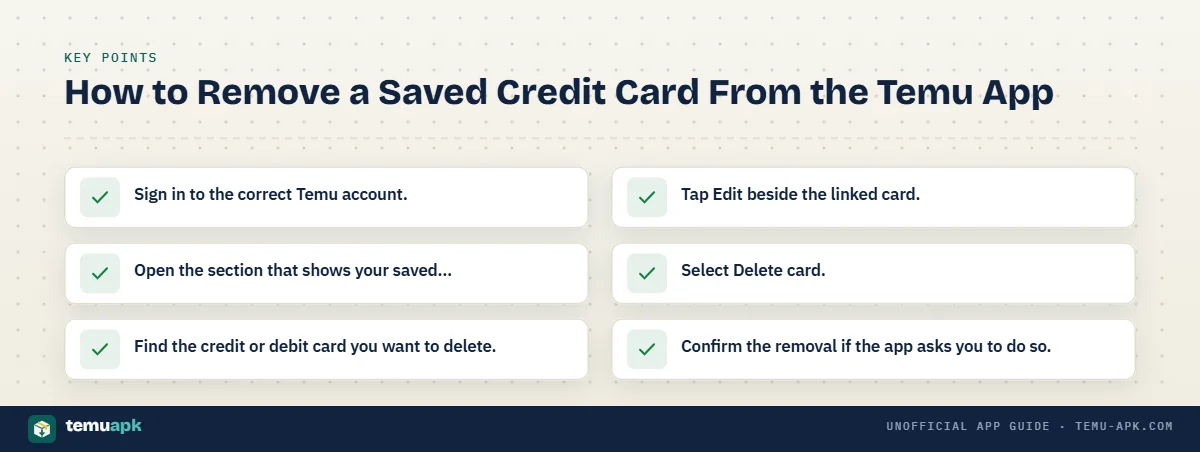
Temu’s current support instructions use the following process:
- Sign in to the correct Temu account.
- Open the section that shows your saved payment methods.
- Find the credit or debit card you want to delete.
- Tap Edit beside the linked card.
- Select Delete card.
- Confirm the removal if the app asks you to do so.
Temu currently makes a small wording distinction between platforms. In the Temu app, the deletion option is Delete card. On Temu.com, Temu instructs users to choose Remove after selecting Edit.
The exact position, icons, or visual design of the payment controls can change as the app is updated. Follow labels such as payment methods, Edit, and Delete card rather than relying on an old screenshot that may show a previous Temu interface.
You also do not need to delete your Temu account simply to remove a payment card. Card management is handled separately through the account’s payment settings.
Check That the Card Was Actually Removed
After deleting the card, reopen your saved payment methods and confirm that it is no longer listed.
If you had several cards saved, compare the last digits shown for each payment method so you can confirm that the correct one was removed. This is particularly useful when two cards use the same bank or card network.
If a card still appears somewhere during checkout, do not immediately assume that Temu failed to delete it. The payment option may be coming from another source rather than Temu’s saved-card list.
For example, a card can sometimes be supplied through:
- a digital wallet;
- a browser’s saved-payment autofill;
- another payment provider linked to checkout.
The important verification is whether the card still appears in Temu’s own saved payment-method controls.
Why Can’t I Find the Delete Card Option?
If you cannot see Delete card, first make sure you are signed into the Temu account where the card was originally saved. Temu advises users who have account-access problems to verify that they are using the correct email address, phone number, or original sign-in method.
Next, open the actual saved payment-method area rather than looking only at the payment choices shown during checkout.
Temu’s current support guidance places the deletion control behind Edit:
- Locate the linked card.
- Tap Edit on the right side of that card.
- Select Delete card in the Temu app.
If those controls are missing or the app looks substantially different from the current instructions, update Temu through your normal official app store and reopen it. A changed layout can make older tutorials difficult to follow even when the account still provides the same underlying card-management function.
If the payment page does not load correctly, close and restart the app, sign back into the correct account if necessary, and check the saved payment methods again.
Avoid using an old screenshot as the only guide. Button positions, account menus, and visual styling can change between Temu versions, while the current support wording provides a better reference for what action to look for.
Try Temu.com If the App Controls Are Not Working
If the Temu app does not show the expected card controls, you can try managing the same saved payment method through Temu.com.
- Open the genuine Temu website.
- Sign into the same Temu account used in the app.
- Open the account’s saved payment methods.
- Find the linked credit or debit card.
- Select Edit.
- Choose Remove.
Temu’s current support documentation specifically uses Remove for Temu.com, compared with Delete card in the mobile app.
Removing a card through your Temu account on the website is separate from deleting payment information stored by your browser. If the same card later appears because your browser has saved it for autofill, that browser-stored payment method needs to be managed through the browser’s own settings rather than Temu’s payment-method page.
Why Does a Card Still Appear at Checkout After You Delete It?
If a card still appears during checkout after you removed it from Temu, that does not necessarily mean Temu still has the card saved in the same place.
The payment option may be coming from another service connected to your device or browser. Temu currently supports several payment methods in applicable markets, including major credit and debit cards, PayPal, Apple Pay, and Google Pay.
Check where the card is actually coming from:
- Temu’s saved payment methods: A card stored directly in your Temu account.
- Apple Pay: A card stored in Apple’s wallet system and offered as an Apple Pay payment option.
- Google Pay: A payment method managed through Google’s payment service.
- PayPal: A card or bank account linked to your PayPal account may be used without being stored directly as a Temu card.
- Browser autofill: Chrome, Edge, Safari, or another browser may remember card information separately.
- Another device or wallet service: A phone, tablet, or payment wallet may supply the card during checkout.
Deleting a card through Temu’s payment-method controls removes the linked card from the Temu account location described in Temu’s support guidance. Temu currently instructs app users to select Edit and then Delete card.
That action does not automatically delete the same card from Apple Pay, Google Pay, PayPal, your browser’s saved-payment settings, or another wallet. Those services manage their own payment information separately.
So the most useful question is not simply, “Can I still see the card?” Instead, check how the card is being offered at checkout.
Saved Temu Card vs Apple Pay, Google Pay, or Browser Autofill
| Where the card appears | Who manages it | Where to remove it |
|---|---|---|
| Temu saved payment methods | Temu account | Temu app or Temu.com payment-method settings |
| Apple Pay | Apple Wallet/payment system | Apple Wallet settings |
| Google Pay | Google payment system | Google Wallet/payment settings |
| Browser autofill | Your browser | Browser payment/autofill settings |
| PayPal-linked payment source | PayPal | PayPal wallet/payment settings |
A useful clue is the way the option is labeled. If checkout shows Apple Pay, Google Pay, or PayPal, the underlying card may be managed by that provider rather than stored as a normal Temu-linked card.
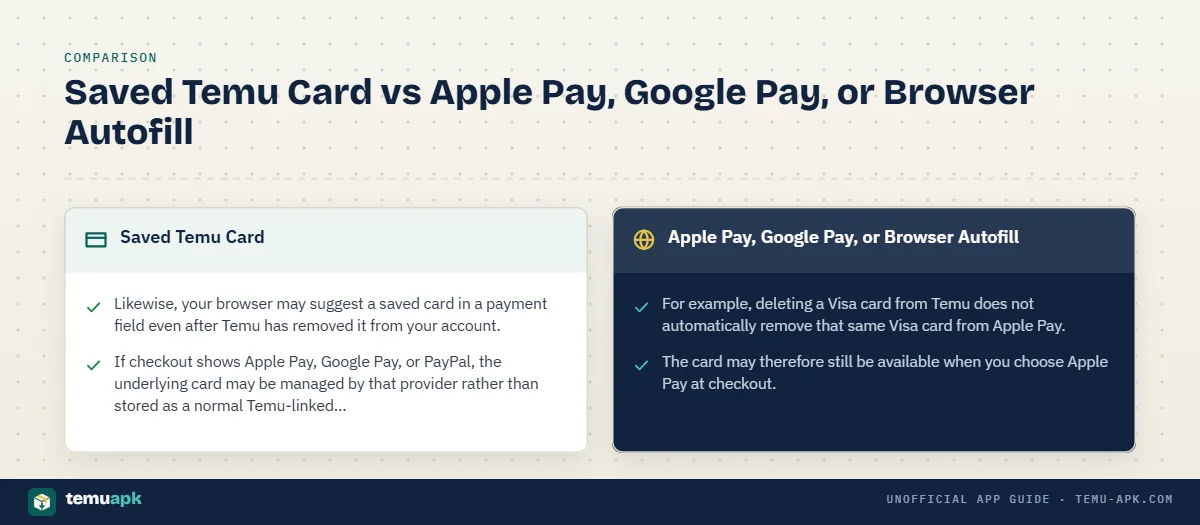
For example, deleting a Visa card from Temu does not automatically remove that same Visa card from Apple Pay. The card may therefore still be available when you choose Apple Pay at checkout.
Likewise, your browser may suggest a saved card in a payment field even after Temu has removed it from your account. In that case, the browser is supplying the information.
Temu’s current payment guidance confirms that these payment methods can coexist as separate checkout options, although availability can vary by market.
How to Remove a Credit Card From Temu on the Website
You can also remove a saved credit or debit card through Temu.com instead of the mobile app.
Temu’s current support documentation uses slightly different wording for the website: the app uses Delete card, while Temu.com uses Remove.
Follow these steps:
- Go to Temu.com and sign in to the account where the card is saved.
- Open your account’s payment methods.
- Find the credit or debit card you want to remove.
- Select Edit beside the linked card.
- Choose Remove.
- Reopen the payment-method list and confirm that the card is no longer shown.
Make sure you sign into the same Temu account you use in the app. If you have more than one account or sign-in method, removing a card from one account will not affect a card saved under another account.
Removing the card through Temu.com changes the payment method linked to your Temu account. It does not automatically erase the same card from your browser’s autofill settings, Apple Pay, Google Pay, PayPal, or another external payment service.
If the card disappears from Temu’s saved payment-method list but still appears during checkout, check those external sources before assuming the removal failed.
What Happens After You Remove a Card From Temu?
Removing a saved card from Temu changes the payment methods linked to your Temu account. It does not cancel the physical credit or debit card issued by your bank.
It also does not:
- delete your Temu account;
- erase past orders;
- remove existing transaction records;
- cancel an order that has already been placed;
- dispute previous charges with your bank or card issuer.
The main practical change is that the removed card should no longer appear in Temu’s saved-card list. When you make a future purchase, you may need to enter another supported payment method or choose an available option such as PayPal, Apple Pay, Google Pay, or Temu Credit, depending on your market. (temu.com)
Deleting a saved card and disputing a charge are also two different actions. If you see a payment you do not recognize, removing the card from Temu does not reverse that transaction or notify the card issuer that the charge is disputed.
What About Existing Orders and Refunds?
Removing a card from your saved payment methods does not itself cancel an order you have already placed. Order cancellation, returns, and refunds are managed separately through the relevant order.
For eligible refunds, Temu currently allows users to choose between Temu Credit and the original payment method in applicable refund flows. (temu.com)
If a cancellation refund is sent to the original payment method, Temu currently states that:
- the refund is issued after the cancellation is approved;
- it normally takes 5–14 business days to appear on the original payment method;
- some providers may take up to 30 days;
- Temu Credit is generally credited much faster when that refund option is selected. (temu.com)
Removing the card from your Temu account does not mean you need to add it again just to receive a refund.
If the original card has been closed, replaced, expired, or is no longer accessible, contact the card issuer or payment provider to ask how refunds to that account are handled. If the refund status remains unclear, use Temu’s official Support Center for the order rather than re-adding the card simply in the hope of changing the destination.
Should You Remove a Card If It Was Lost, Stolen, or Used Without Permission?
Yes, removing a lost or compromised card from Temu can be a sensible account-management step, but it should not be your only response.
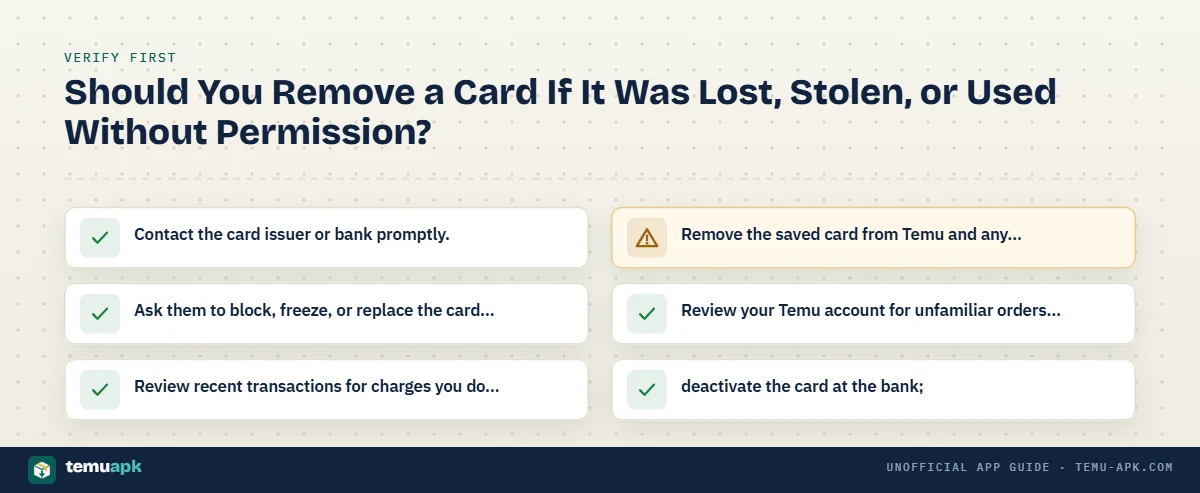
If the physical card has been lost, stolen, or you suspect someone has used it without permission:
- Contact the card issuer or bank promptly.
- Ask them to block, freeze, or replace the card as appropriate.
- Review recent transactions for charges you do not recognize.
- Remove the saved card from Temu and any other accounts where you no longer want it stored.
- Review your Temu account for unfamiliar orders or changes.
Temu’s current online-safety guidance specifically advises users to report lost or stolen cards immediately and to check bank statements regularly for unusual activity. (temu.com)
Deleting the card from Temu does not:
- deactivate the card at the bank;
- stop someone from using the card elsewhere;
- automatically dispute unauthorized charges;
- replace the need to contact the issuer.
If you find a transaction you do not recognize, check whether someone with authorized access to your payment details placed the order, then contact the appropriate bank, payment provider, or Temu support if necessary. Temu also advises users to report suspicious payment activity and review their statements for anomalies. (temu.com)
On shared phones, tablets, or computers, avoid saving card information or payment credentials. Temu’s safety guidance specifically recommends not saving this information on shared devices. (temu.com)
What to Do If Temu Still Won’t Let You Remove the Card
If the card remains linked after you try the normal removal process, work through the problem in this order:
- Check that you selected the correct card.
Compare the last digits if several payment methods are saved. - Confirm that you are signed into the correct Temu account.
A card saved under another login will not disappear from that account when you edit a different one. - Update and reopen the Temu app.
A newer interface or temporary loading problem can affect where the payment controls appear. - Try Temu.com with the same account.
Temu currently instructs website users to select Edit beside the card and then choose Remove. In the app, the corresponding action is Delete card. (temu.com) - Check whether the card is actually coming from another payment service.
A card offered through Apple Pay, Google Pay, PayPal, or browser autofill is managed separately from Temu’s own saved-card list. - Use Temu’s official Support Center if the card remains linked.
Temu provides account, payment, order, and security support through its official help and contact channels. (temu.com)
Do not send a full card number, CVV/security code, password, or other sensitive payment credentials through an unofficial website, social-media account, email address, or phone number claiming to provide Temu support. Temu’s own shopping-safety guidance warns users not to provide full credit card numbers or passwords through email, messages, or phone calls. (temu.com)
For account-specific payment problems, use Temu’s own app, website, Support Center, or official contact page rather than a third-party service offering to “remove” the card on your behalf.
Conclusion
Removing a saved credit or debit card from Temu is an account-setting change, not a cancellation of the card itself. In the app, Temu currently directs users to open the linked card, choose Edit, and then select Delete card; Temu.com uses Remove instead.
Afterward, check the saved-payment list to confirm the correct card is gone. If the same card still appears at checkout, identify whether it is being supplied by Apple Pay, Google Pay, PayPal, or browser autofill rather than Temu itself.
Existing orders and eligible refunds are handled separately, so deleting a saved card does not cancel them. For a card that was lost, stolen, or used without permission, removing it from Temu should be accompanied by contacting the card issuer and reviewing recent transactions.
FAQ
Will removing my card from Temu stop a pending charge?
Not necessarily. A pending amount may be an authorization hold created when an order was placed. Temu says unused authorizations are released according to the card issuer’s policy, so deleting the saved card does not itself make an existing hold disappear.
Why do I still see a Temu charge after deleting my credit card?
Deleting a saved card does not erase charges or authorizations created before the card was removed. Temu says some duplicate pending authorizations may remain for 3–6 business days, depending on the bank. Contact the card issuer if you need details about a pending amount.
Can I add the same credit card to Temu again later?
Temu’s payment settings allow users to add credit or debit cards as well as edit or remove linked cards. If you later want to use a previously removed card again and it is still valid, you can add its payment details through the normal card-management process.
Where can I contact Temu if the card will not delete?
In the Temu app, open the You page, enter Support through the customer-service control, scroll down, and choose Contact us. On Temu.com, Temu directs users to Support in the navigation menu and then Contact us.
Does deleting my Temu card remove my PayPal payment method too?
No. PayPal is managed separately from a credit or debit card stored directly in Temu. Temu treats PayPal as its own payment method, so a PayPal-linked funding source must be managed through the relevant PayPal or Temu PayPal controls rather than by deleting a normal saved card.